Showing posts with label Microsoft. Show all posts

Thursday, 25 May 2017

Microsoft Releases New Surface Pro with extended Battery life.


Microsoft has announced the release of a new version of its Surface Pro Windows tablet that is thinner, lighter and has a longer battery life.
The company, on a roll from a previous announcement of the new Surface Laptop and Windows 10 S, launched the updated hybrid computer, which can turn from a tablet into a laptop with the addition of a keyboard, at an event in Shanghai. The new Surface Pro replaces the Surface Pro 4 and drops the numbering scheme Microsoft has used for the last five years.


The new Windows 10 tablet will have the latest, seventh generation Intel Core processors – something rivals such as Apple’s MacBook Pro line lack – and up to 13.5 hours of battery life and a smoother, as well as a more rounded design than its predecessor. A new version of the Surface Pen stylus was also released, which supports tilt recognition for sketching on the 12.3in high-resolution touch display.


A version will be available with a built-in 4G modem, while a new kickstand hinge on the back will allow the tablet to adjust to an angle of 165 degrees to make writing or drawing on the screen with the stylus easier. The Surface Dial accessory, which was launched alongside the Surface Studio all-in-one PC in October 2016, will also work with the new tablet.


Microsoft said that new versions of the Surface Pro’s optional keyboard will be available with an Alcantara fabric material – the same finish that raised eyebrows when it was used to cover the keyboard deck of Microsoft’s Surface Laptop.


Friday, 19 May 2017

Microsoft is changing windows design


The recent creators update Microsoft released for Windows 10 may sound very unattractive and unartistic, but the truth is the is filled with artistic potential and useful features that will give users a timeline to manage complex work sessions, APIs that tie all of Microsoft's services together and, notably, a new design paradigm intended to radically overhaul the flat-rectangle user interface it's known for. Microsoft's Fluent Design System focuses on five tenets to help developers build more creative and engaging user interfaces: depth, material, light, scale and motion.


Light

If you are a filmmaker then the read is worth it. You will to know just how important lighting is in a scene. With design, it's no different: How bright or dark an interface is can change how the user perceives it.  It creates atmosphere, lending an app design a sense of place. That's true enough, but when it comes to designing an interactive menu or app interface, it's also an important tool for drawing a user's attention. An illuminated button can teach customers how to use an app, or highlight a program feature they might otherwise pass over.


Depth

With earlier versions, Windows has almost relied on square frames to present users with information and tools. Microsoft is challenging developers to kill that paradigm by breaking information and objects free of a traditional 2D frame With Fluent Design.
Instead of the usual flat traditional calendar, for example, Microsoft's Build presentation imagined an "at-a-glance" agenda zooming in and telescoping important events toward the user -- creating an illusion of depth by layering and sizing more important appointments to appear larger. The hope is that by using depth to lend interfaces the illusion of a physical environment, Windows apps will be able to keep their users engaged for longer.


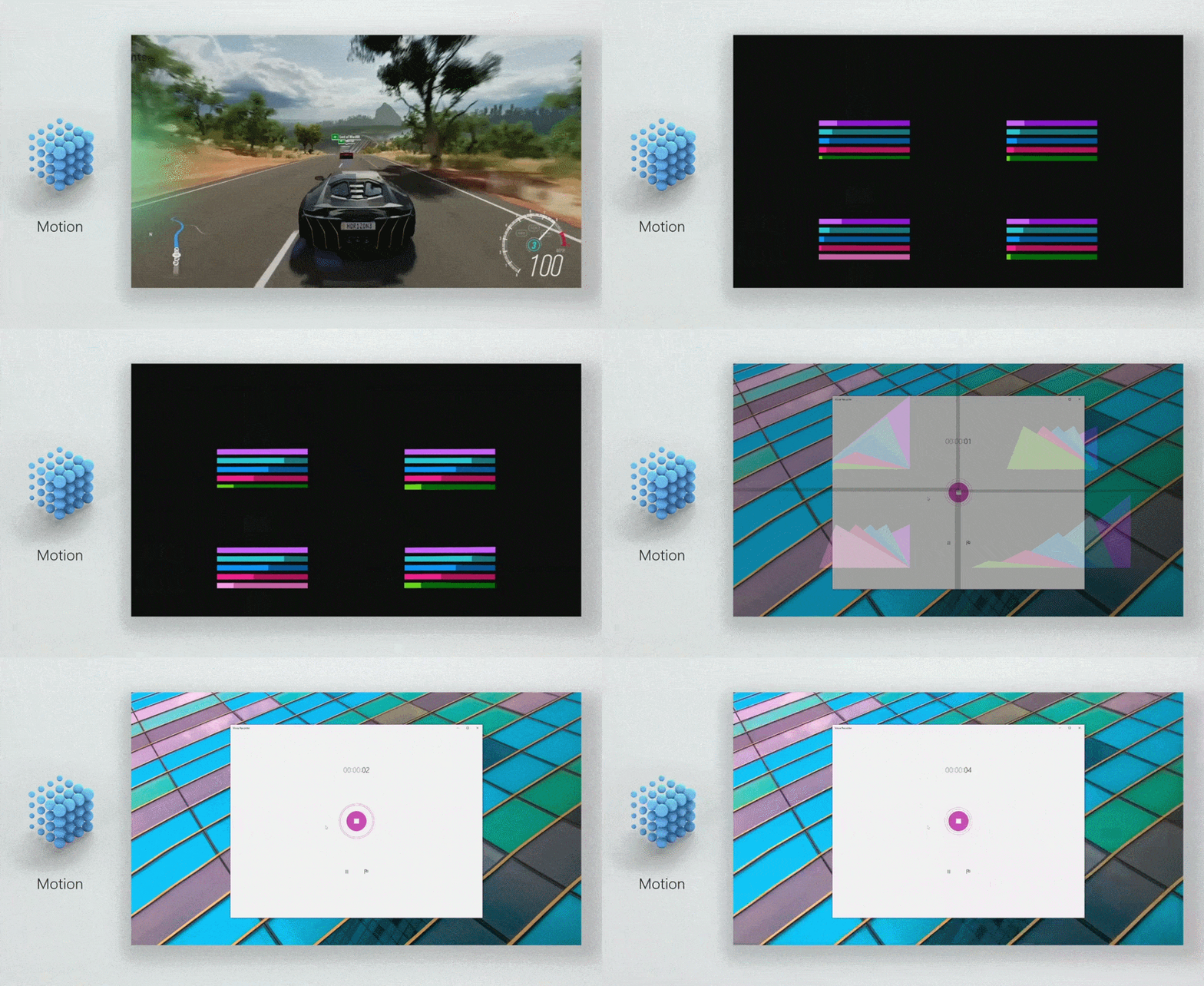
Motion

An amazing animated interface is indeed an engaging one, and the "motion" edict is all about keeping a user's attention by giving her something active to look at and interact with. The use of motion in Fluent Design to a director using movement is being likened to lead the viewer to the story they want to tell. "Motion design has a special power to bring all of our experiences to life," Belfore says, "and lead people from one task to another with a cinematic ease."

Microsoft illustrates this with the Xbox One's live pop-in menu, music visualization in a media player and with a motion graphic transitioning a simple graph to a more dynamic, brightly colored array of representational shapes -- all examples that quickly draw the attention of the user to the task at hand, be it controlling music, managing game settings or simply keeping the viewer engaged with a dataset.


Material


Similar to most of Fluent Design's  concepts, "material" almost seems like a dig at the visual style of Windows' past. The functional squares of the traditional Microsoft interface may be, well, functional, but it lacks a connection to the physical world. Belfiore suggests that the key to making users love Windows' app design is to emulate the "sensory and invigorating" feel of the materials that make up the real world.

"We want to bring more of that character to our designs in the right way, with a physical quality," he says. "Inviting people to touch and interact." This statement could easily be dismissed as an effort to give apps more interesting textures -- but with Windows 10, the idea of making a PC interface inviting to touch holds some merit. We may think of PCs as simple, traditional keyboard-and-mouse interfaces, but the Fall Creator Update leans hard on better voice control, better touch interaction and natural-feeling stylus input. Building an interface that invites that kind of interaction makes a lot of sense.


Scale

Microsoft's recent design language seems surfaced with improvement on the traditional computing environment -- objects under glass controlled with peripherals and accessories. "Scale" is a bit different. Here, Microsoft is looking toward its own future. Specifically, the scale of digital objects used in 3D interfaces and virtual/augmented reality.

The relative "size" of digital assets happens to be something VR developers have been working on for a few years now -- an object that might be properly scaled when viewed through a computer monitor might seem incredibly large or surprisingly small when viewed through an AR or VR headset. Getting the size of virtual objects right is paramount to building a good first-person interface. By challenging developers to think about the scale of their interface in terms of a 3D environment, Microsoft is asking them to imagine how their product might look through the company's Hololens headgear.


It's quite too early to say for sure how Fluent Design will work out, but Microsoft is clearly thinking about its user interface in a completely new way. It's a little odd but the idea that the next version of Windows could look completely different is absolutely exciting.


Saturday, 13 May 2017

Microsoft's New Mixed Reality Controllers


Microsft Reality controller


Microsoft announced its own set of motion controllers made for its burgeoning Windows Mixed Reality platform, at its annual Build developer conference. The company is calling its new computing platform “mixed reality” because it is a combination of different elements of augmented and virtual reality. The platform itself is directly embedded into the Creators Update for Windows 10.


The new motion controllers announced yesterday (Friday) is to be bundled with virtual reality headsets made by partners Acer, Asus, Dell, HP, and Lenovo that will go on sale this holiday season. One of the first displays to be paired with the new controllers is the Acer Mixed Reality headset tested a few weeks ago.


Microsft Reality controller


At first, the controllers look like a mixed breed between the HTC Vive and Oculus Touch motion controllers. The Microsoft motion controllers are wireless, feature a thumbstick, touchpad, and a ring at the end to help with spatial tracking accuracy. The controllers do not need an external sensor because they are built directly into any compatible headsets.

 The motion controllers are a critical addition to Microsoft if they want people to take the new platform seriously. Until now, all of the demonstrations of new Windows Mixed Reality headsets have always required an Xbox controller.


Microsft Reality controller


Finally, the controllers are not compatible with HoloLens and thus won’t work with Hololens. This shouldn’t affect many people at all since the HoloLens is still only a developer kit and is more focused on enterprise than gaming anyway. The Hololens also comes with its own gesture-tracking features built directly into the headset, so it doesn’t really need controllers like this anyways.


Friday, 28 April 2017

Don't install updates if you are not tech savvy Microsoft Warns Users


There is still stability issues with the creators' update recently released by Microsoft, after promising users that they would have the option to postpone future updates for a limited period of time.  As the instability issues become more apparent, performing a manual installation is not recommended at the moment.


In a blog post, Microsoft’s director of program management explained that the latest update has been rolling out slowly because there are known issues that could be a problem for anyone who isn’t an advanced user. The post doesn’t go in depth on what those issues are but it appears that all the bugs haven’t been ironed out for certain devices. For instance, PCs that use a certain type of Broadcom radio were having connectivity problems with Bluetooth devices.


If you aren’t the type to manually install updates, this probably isn’t your problem. Windows 10 has automatically pushed updates to users since it debuted. The Creators Update has a lot of cool little features, but the most useful one is that it offers a simple way to pause installing updates for up to seven days. Updates are good for security but Windows has had an insidious way of suddenly deciding it’s time to install that latest patch and restart right when you’re in the middle of something important.


Microsoft is still automatically updating users this time around and if you encounter problems, you can find instructions for rolling back the update here. If you’re the cavalier type who doesn’t care about warnings and just wants to start making 3D dogs in MS Paint, you can manually download the update.


Read also Windows 10 creators update: new features: How to get it

Thursday, 20 April 2017

Microsofts new task manager app To-Do in beta


Here comes yet another task manager application and use Microsoft's Office 365 you might want to check out the new To-Do beta app.


Think of it as a Wunderlist replacement that also makes suggestions for you. It actually comes from the developers of Wunderlist and uses a sorting algorithm to determine what's important for you to do today or what you missed yesterday. A video is worth a thousand words here, and luckily Microsoft has it covered.


Always remember that this app is in beta. It looks really nice and seems to work well, but there probably will be bugs. Microsoft is quick at fixing those when it comes to its Android apps, though. And while it's from the Wunderlist folks, it's not yet a direct replacement and lacks a weekly view or the ability to star messages.


The features will likely come as Microsoft puts the finishing polish on To-Do, but even today it looks like an app a lot of people will love with the Office 365 integration and suggestion features. Check it out!


Read Also Microsoft Surface Pro 5 New Leaks

Saturday, 15 April 2017

Ready To Use Excel Formulas : how to Calculate Percent Variance


A variance is an indicator of the difference between one number and another.
To understand this, imagine that you sold 120 widgets one day, and on the next day, you sold 150. The difference in sales in actual terms is easy to see; you sold 30 more widgets. Subtracting 120 widgets from 150 widgets gives you a unit variance of +30.


So what is a percent variance? This is essentially the percentage difference between the benchmark number (120) and the new number (150). You calculate the percent variance by subtracting the benchmark number from the new number and then dividing that result by the benchmark number.
In this example, the calculation looks like this: (150-120)/120 = 25%. The Percent variance tells you that you sold 25 percent more widgets than yesterday.


The picture below demonstrates how to translate this into a formula. The formula in E4
calculates the percent variance between current year sales and previous year sales.


calculating the percent variance between current yr sales and previous yr sales


How it works

The one thing to note about this formula is the use of parentheses. By default, Excel’s order of operations states that division must be done before subtraction. But if you let that happen, you would get an erroneous result. Wrapping the first part of the formula in parentheses ensures that Excel performs the subtraction before the division. You can simply enter the formula one time in the first row (cell E4 in this case) and then copy that formula down to every other row in your table.


Alternative: Simplified percent variance calculation


An alternative formula for calculating percent variance is to simply divide the current year sales by the previous year sales and then subtract 1. Because Excel performs division operations before subtraction, you don’t have to use parentheses with this alternative formula.
=D4/C4-1


Friday, 14 April 2017

Microsoft Surface Pro 5 New Leaks


After several years of developing and convincing that a tablet can replace a laptop, Microsoft pushed a minor update to the Surface range, the Microsoft Surface Pro 5. The new leak shows that Microsoft Surface Pro 5 will have the same power connector as its predecessors.


According to CNET, this kind of innovations is just feeding the rumors on the Internet with new speculations that emerge about the Microsoft Surface Pro 5. However, a Microsoft watcher Paul Thurrott provides new details stated that the Microsoft Surface Pro 5 will have an iterative flagship on a convertible hybrid.


Thurrott added that the Microsoft Surface Pro 5 will use the new Kaby Lake processors from Intel, the Kabey Lake Core i7. Rumors claimed that there will be some changes in its position of Microsoft Surface Pro 5's keyboard cover. It is not just the keyboard but also the Microsoft's hardware, as it promotes the vision of the modern computer.


Additionally, patently Mobile reveal that Microsoft Surface pro 5 can have a chargeable Surface Pen and dock. it's also noted that the stylus can look a thin rod-like form which can be easily misplaced however it'll be connected through a magnetic and electronic dock that's automatically recharged the stylus.


Aside from the changes, there's no news concerning the designs, ports, or perhaps the release date, however, there are claims that Microsoft Surface pro 5 will still keep the Surface Connect power connector as what expressed awhile ago as an opposed to the USB-C charging type. This minor update of the Surface line-up has been the same because of the update of the 2015 MacBook pro line-up.


There are reports that the Microsoft Surface pro 5 will have the price of $899, and could be released in October.


Microsoft's objectives for this update is to point out, how the new software-based innovations will work with the Microsoft Surface pro 5, where its stress its cloud-based services and Windows 10 OS.


You can read also Microsoft Word used to circulate dangerous Dridex malware

You can also read Microsoft to release impressive upgrades for Microsoft (MSFT) Surface Pro 5


Thursday, 26 January 2017

9 Most essential CMD Console Commands.


Here is a list with some of the command prompt commands that I found to be either extremely helpful or terribly fascinating.


1.Tasklist

tasklist
Tasklist command, which acts pretty much just like the task manager, displaying all the processes that are currently running on your Windows. (Just type "tasklist" in the console and press Enter.) The list contains the name, PID, Session Name, Session Number and Memory Usage of each entry on the list. If you were wondering why the PID is useful, I'll tell you. You can type "taskkill -PID <ID number>" and terminate the respective process. (For example, if you take a look at the image to the right, if I typed killtask -PID 508 the console would terminate the Winlogon process.


2.Assoc

Assoc 
Assoc is a very simple yet handy command which gives you detailed information about all the current associations between file types and the applications on your PC. In simple terms, you can easily find out which application is set to automatically open each extension using this instruction. If you type "assoc" into the console and then press Enter, you will see a list with every extension along with the program designated to deal with it, while if you type "assoc .doc=" you will see which of your applications opens your .DOC documents. (The second example works with any of the extensions you saw in the complete list.)


3.Cipher

Cipher

If you didn't already know, when you ask Windows to delete a file or a folder, the operating system doesn't really erase the data but instead marks it as inaccessible, and the space it occupies will be seen as free. However, till the several disk sector (where the file is) gets overwritten, the info continues to be redeemable. Cipher may be a very cool command that instructs your computer to write all the deleted files from a nominal location (drive or folder), therefore creating them more durable to retrieve. Here's AN example of a way to use it: "cipher /w:c" (this can write all the deleted files from your C partition). And you do not ought to worry, this command solely overwrites the files marked as deleted, departure all the other files on your pc just as they're.


4. Powercfg

powercfg

In case if you didn't figure it from its name, Powercfg is a command which gives you information and helps you manage your computer's power-related settings. For example, typing "powercfg /a" in the CMD console and pressing Enter will display all the power-saving options that are currently available to you. As I said, you can also manage these setting: "powercfg /sleep off" will disable the sleep command for your PC. Additionally, you can use "powercfg /devicequery s1_supported", which will display a list with all the devices on your network that support connected standby (meaning that they can remotely put your computer to sleep or wake it). Lastly, "powercfg /lastwake" will show you which connected device woke up your PC the most recently.

5. Netstat

Netstat

In case if you think you have been infected with some sort of Trojan, or if you're thinking that that somebody else is additionally connected to your computer you'll check things out by using Netstat. This command displays your current ip along with a list of all of your opened ports and connected ip addresses, Moreover, the console will tell you if each of the listed ports ar listening, established or closed. (This time we don't need an example; simply type the command into the prompt window and press Enter.)


6. Ping

Ping


Out of all the available commands, Ping is the one i use more often. This instruction permits you to send a data package to a given URL or ip address and check how long it takes for it to return to your pc. In easier terms, this command can assist you verify if you have a working link an internet site or another laptop on your network and also verify how well that connection is working. Here are 2 examples of how to use it: "ping 196.168.1.1" (for an informatics address) or "ping -t web.google.com" (for a website; -t means this command won't stop mechanically and can need you to manually turn it off).

Additionally there are 2 more closely related commands which might assist you out in case something seems to be wrong. If a ping does not return and you want to figure out what's the matter, you'll find out wherever it stops by using the Pathping. This command can show you each hop through which the packet is bounced until it reaches its final destination, therefore enabling you to see precisely where the connection breaks. (Example: "pathping web.google.com".) just in case you wish to find out which of the hops is particularly slow you'll use Tracert. This command works a similar as Pathping, however additionally displays the time it takes for the package to arrive to every of the hops on the manner. (Example: "tracert web.yahoo.com".)


7. Ipconfig

ipconfig


Ipconfig is a command you'll often use to quickly get info related to your network / web connection and the hardware that makes it possible. If you sort ipconfig /all into the console and press Enter, you'll see a comprehensive list of data as well as your mac address, your ip address, the server's ip address, the DNS server address, the Subnet mask, etc. what is more, in case if you get a warning message saying that there is an science conflict on the network, you'll be able to sort ipconfig /release (then press Enter) followed by ipconfig /renew to force the software package to present you a replacement science address. Lastly, you'll be able to use ipconfig /flushdns to refresh the DNS address, but you'll rarely would like this.

8. systemfile checker

system file checker

System File Checker (sfc) is a command that instructs your Windows to check and repair the system files. in order to use this instruction you will need to give the command prompt console administrator privileges, but the function is quite helpful, because it tries to automatically replace missing system files and repair those that are corrupted. To use this command type "sfc /scannow" into the CMD console and press Enter.

9. shutdown

shutdown

In Windows 8 and Windows 8.1, the Command Prompt console can also be used to shut down your PC. I know that there are easier ways to do this, but if your type "shutdown" into the console your computer will be shutdown. However, when used with additional parameters, this command can actually be useful. For example, typing "shutdown /r /o" and pressing Enter will instruct your PC to restart and automatically open the Advanced Options Start Menu on startup (it's the place where you can choose to start your Windows in Safe Mode).

Wednesday, 25 January 2017

How to Manage Your Hard Disk Drive Partitions


Open HDD
The hard disk is the hardware part where the data is kept. Basically, everything you store on your pc is there: the operating system, applications, files, etc. A partition is a logical division of the disk drive that is capable of acting like an individual entity. on paper, you can have only one single partition on a hard disk however that is terribly harmful as anytime you'll need to format the drive (and it'll happen), you will lose all the information. 
This is why knowing a way to create, delete, extend or shrink partitions is very helpful. Here's what you need to know:

windows control panel


Managing Disk Partitions with Windows administrative tool.


Windows ships out with its own partition management tool so you do not have to be compelled to install another software if you do not need to. 
This guide is created for Windows 7 because it is the most popular in the world at the moment, however, if you've got a different version of the operating system, things are not very totally different. in order to access the partition manager, you will have to go to 
control panel --> administrative Tools and a new window will be automatically launched. Once there, click on the Disk Management button in the Storage category (in the left column).

 After a brief period of your time, during which the tool identifies your hard disk and its partitions, you will have full access to manipulate with anything you wish. 

However, do not fiddle with drive C: (or whichever other partition you utilize to boot) as you may lose the software system alongside all the data on it. 
Moreover, having a bootable recovery disk at hand could also prove to be prudent.

Windows Computer Management


While in the Disk Management window, right-clicking on a drive allows you to shrink, extend, delete, format or modify the letter of that respective partition:

  • Shrinking a partition can decrease the amount of space on it while the excess left will be remodeled into unused space (which is afterward transformed into a brand new partition)
  • Extending a partition permits you to extend the storage area of the desired drive, however, requires you to have unused space at your disposal,
  • Deleting a partition will utterly remove the individual drive and all the data stored on it, transforming into unused space.
  • Formatting a partition is a process that makes the individual drive "usable" for Windows. It transforms unused space into an area that the operating system can work with. In most cases, you will have to make a choice from FAT32 and NTFS (modern operating systems utilize the latter).
  • Changing the letter is self-explanatory. It lets you modify the letter of the individual partition. just in case you have a large number of drives, this might help you easily distinguish between the ones you use for booting, for applications of for movies. Certain letters could also be reserved for specific devices so you will not be able to use them.

One fact to remember is that each operating system will steal space when making partitions. What I mean is that if you've got 500GB of unused area, partitioning it will result in a drive with a slightly smaller capacity. The more partitions you create the extra space will disappear (will be reserved by the software system, rather) and while the proportion of the space that goes missing is insignificant, if you work with huge amounts of space (>TB), you'll notice a few of missing GB.

Managing Disk Partition with third-party Applications.

paragon partition manager

Paragon Partition Manager is another reliable option. Although the link I provided says shareware, the application has a free trial version called Paragon Partition Manager 14 Free. What is very cool about this application is that it had been designed to assist users manage their partitions without risking data loss, thanks to its proprietary technology. Partition Manager 14 Free only offers basic functionality (creating new partitions, deleting existing ones, resizing drives and formatting them), however, regular users will not need much more than that,  Adding to that its well-designed interface and the many wizards that will assist you in your tasks, and you have got a free partition manager that anyone can use.


EaseUS Partition master


The free version of EaseUS Partition Master (called Home Edition) is one of the most effective solutions that you will find. Besides the usual functions, like making new partitions and deleting, resizing or shrinking them, this tool may also perform a couple of neat tricks, like moving or hiding and unhiding your drives (all without risking data loss). Furthermore, this tool offers a copy wizard which will provide you with a very simple way to extend a partition while additionally keeping all of your files intact. EaseUS Partition Master will simultaneously work with 32 storage devices, supports drives of up to 4TB and is even capable of performing operations on partitions specific to Linux system} operating systems (EXT2/EXT3).


MiniTool Partition Wizard

Minitool Partition Wizard Home Edition another efficient partition manager. This tool can assist you create, extend, shrink, delete, format, modify drive letters and replica disk partitions. Another really fascinating feature is that the application is capable of converting your FAT32 drives into NTFS partitions. Additional functionality includes the ability to test the disk surface, rebuild the Master Boot Record (MBR), and a 1GB data recovery tool.

Friday, 20 January 2017

Samsung Unveils All-In-One PC


This year's CES trade event was stuffed with innovative product and technology shows. Samsung was one among the most expected participants and held a one-and-a-half hour conference. For a few reason, a number of their product weren't promoted because the rest of their new technologies. One example is the All-In-One computer system, a computer that won't presently available on the market and was presented in two versions: with and without touchscreen.


The AIO computer comes with a 24-inch Full HD display connected to the front of the sound bar, wireless keyboard and mouse, up to 16GB RAM, 1TB 5400RPM hard disc drive, and Intel Core i5-7400T. Other specifications include many USB 3.0 ports, an SD card slot, and a Gigabit LAN port. Another nice side about this all-in-one laptop is that the proven fact that it comes with the SideSync utility, a program that is used to sync files with Samsung mobile phones and tablets. Thus it goes without saying that this laptop deserved a prolonged presentation at this year's CES.


Unfortunately, the tech company has yet to release any information relating to the price for the All-In-One computer. The only thing we're left to do till it becomes available for buying or Samsung reveals further details regarding the computer is to watch the company's YouTube presentations.

More on CES 2017 best Technology


Wednesday, 18 January 2017

Microsoft Admits that Windows 7 is no longer fit for Business even though it will be supported until 2020


Microsoft office


Even though it is still 3 years away from the end of its lifecycle, Windows 7 isn’t any longer suitable business use, Microsoft has admitted.

Microsoft’s German division said on Monday that Windows 7, which will receive regular security updates till 2020, lacks the protection required to deal with modern threats.

Basic support for Windows 7 ended 2 years back, and since then the OS has suffered from higher operating costs and loss time as a result of malware attacks, and a general lack of support for newer hardware accessories, consistent with the blog post.

"Even today, (Windows 7) fails to meet the requirements of recent technology and the high standards of security required by IT departments," said Markus Nitschke, head of Windows at Microsoft Germany, quoted in the post.


Support for the Windows 7 platform is due to end in January 2020, at that purpose customers still using the OS can no longer receive security updates or technical support from Microsoft.

But Monday's weblog post argues that firms not coming up with a transition away from Windows 7 within three years face "enormous dangers".

As we saw with Windows XP, companies should start making the switch early to avoid risks and costs later on," Nitschke added.
While Microsoft counts 400 million devices running its newest operating system, Windows 7's user base is still double that of Windows 10, with 7 running on 48% of desktop and laptop devices and 10 running on 24%, according to NetMarketShare .


win 10


Yesterday's blog post refers to services such as Cortana and Windows Ink, each new options with Windows 10. The post doesn't mention the additional layers of security businesses would possibly use to increase overall protection.

Windows 7, released in 2009, was "developed for the wireless world of the late 2000s", but Microsoft said the platform is constructed on superannuated security architectures and, since basic support over, it hasn't been upgraded with any new features.

In contrast, users on Windows 10 can take advantage of improved security through Windows Defender Advanced Threat Protection, and Microsoft has boasted that the latest anniversary Update was able to eliminate exploits before they were specifically patched.